About Us
 Careers
 Leadership
 Board
Board Newsroom
Google reviews search lives on the public Maps listing: open the business on Google Maps in a desktop browser, click the Reviews tab, click the magnifying glass at the top right of the review panel, and type the term.
The owner dashboard has no keyword search, star filter, date filter, or export, so agencies auditing a client portfolio work from Maps or an application programming interface (API)-connected tool, with Search operators available for locating listings.
The sections below cover the click paths, searching by name, the dashboard’s limits, what the ranking studies support, and portfolio-scale monitoring.
Respond to every review faster, smarter, and on brand with AI
TL;DR
- Review search lives on Google Maps, not the owner dashboard: Open the listing on Google Maps, click Reviews, then the magnifying glass to search by keyword. The Business Profile dashboard has no keyword search, star filter, date filter, or export.
- Review keywords rank 36th for local pack: Whitespark’s survey of 47 local search engine optimization (SEO) experts places keywords in Google reviews at #36, behind rating (#6), quantity (#9), and recency (#11).
- AI Reputation Specialist auto-replies to Google and Facebook: Vendasta’s AI Reputation Specialist automatically responds to Google and Facebook reviews in the reviewer’s language under configured rules, suggests replies for 100+ other sources, and answers sentiment questions per client via chat.
How to Search Google Reviews by Keyword
Type a service term or employee name, and Google surfaces the reviews that mention it. The routes are Maps on desktop, the Maps app, the owner-side Customers > Reviews panel, and Google Search operators.
Searching Reviews on Google Maps (Desktop and Mobile)
The desktop browser route takes four steps, though Google does not document the search icon:
- Search the business name at maps.google.com and click the listing.
- Click the Reviews tab, or the star rating, to open the review list.
- Click the magnifying-glass icon at the top right of the Reviews section, scrolling the panel up if the layout hides it.
- Type a practical detail such as parking or wait time, or enter a technician’s name, then press Enter. Matches appear highlighted in yellow.
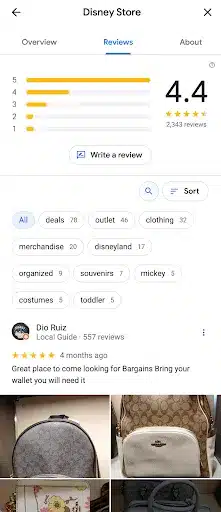
Google’s documentation covers viewing reviews on Android and iPhone but no search step, and Google has not confirmed a mobile search bar, so test on a client’s device first. In the Maps app:
- Pull up the business listing.
- Tap the Reviews header to expand the list.
- Use the Search reviews box above the first review. One April 2026 practitioner guide reports that the field may disappear below 10 reviews, while another reports availability for all businesses. Google confirms neither threshold.
Searching Google Reviews by Name
You can search reviews for an employee’s name, but you can’t filter them by reviewer. Type a staff member’s name into the Maps review search field and Google highlights every review that mentions them. That’s the fastest way to pull praise or complaints about a specific technician, stylist, or location manager.
Google has no reviewer filter, so a customer’s name turns up only if it appears in someone’s review text. To see everything one person has posted, click their name on a review to open their Maps profile, which shows their public reviews unless they’ve restricted it. For reviewer-level analysis across a portfolio, use the Business Profile API’s reviewer field.
Searching and Filtering Reviews in Google Business Profile
The owner-side review panel sits inside Google Search and Maps:
- Sign in to the Google account that manages the profile.
- Search the business name on Google, or open the listing in Maps.
- Open Customers > Reviews.
Owners can:
- Reply to a review
- Edit or delete that reply
- Report a review through the Reviews Management Tool
- Appeal once, covering up to 10 reviews, which takes up to five business days
Google’s Manage customer reviews documentation lists no filter by star rating, date range, or replied status, no keyword search, and no bulk export.
Using Google Search and Search Operators
Searching the business name, city, and reviews may surface the knowledge panel and third-party pages, enough to confirm the right business listing. Quotation marks around the name force an exact match, which matters for chains and near-duplicate names. site:google.com/maps "Business Name" may return Maps place pages because Google Search sometimes indexes them, but not reliably, and Google’s site: operator documentation warns that site: does not return every indexed URL.
Keyword Topic Chips and Star-Rating Filters
Google’s algorithm generates the Place Topics chips above a review list from the words customers mention most, with a mention count for each topic. Google’s Place Topics documentation states that they appear only once a business has enough reviews, and owners cannot edit them.
Highest and Lowest only reorder the feed, and Google documents no date-range control. Segmenting by rating or month requires the Business Profile API’s starRating field (ONE through FIVE) and its createTime timestamps.
Analyzing Google Reviews
Keyword search shows which themes recur and whether they shift month to month. Across a portfolio, that means deciding what to record each month, since Google stores no history for you.
Identifying Common Themes in Your Reviews
Start with the Place Topics chips, then search pricing and specific services. Add staff names and the phrases prospects type into Google. Google can lift matching review text into listings as a local justification.
Tracking Changes in Your Reviews Over Time
Google’s native tools offer no historical trend view, so tracking depends on stored data.
Sterling Sky’s recency study documents a client with no new review in more than three years that Google filtered from keywords it once ranked for. Set the pull for the first of each month and store star rating and createTime with the tagged theme, so the trend line survives any dashboard outage.
Challenges in Using Google’s Reviews Search Function
Listing volume and unreliable dashboard data limit native review search across a portfolio.
Volume of Reviews
The Business Profile API returns 50 reviews per page, so a 50-client portfolio with 200 reviews each means 200 API calls or 50 manual sessions per audit. Agencies bill those fulfillment hours against the same monthly retainer before anyone writes a line of the report.
Vendasta’s AI Employees act as the fulfillment layer that absorbs exactly this kind of repetitive audit work, letting an agency expand its monthly recurring revenue without hiring one additional specialist for every new client added—that gap between revenue growth and headcount growth is the Margin Engine.
Search Engine Roundtable reported in July 2026 that the owner dashboard showed “You have no reviews yet” on listings with hundreds of public reviews, including one with 916, with restoration still incomplete in September 2026.
Reviews that won’t show up recur: Search Engine Roundtable noted not every business recovered every review after the October 2025 bug. Store each client’s customer identifier (CID) and Place ID, because a changed CID disassociates a listing from its review history.
Variability in Quality
A keyword search returns fake reviews alongside real ones. Google reported blocking or removing more than 292 million policy-violating reviews in 2025 in its April 2026 enforcement update; on a spike it removes the content, pauses new reviews, alerts the owner, and posts a warning banner. Only Google triggers that pause, as agencies looking into how to turn off Google reviews find.
During review bombing, Google may filter legitimate reviews with the fakes, and some may be outright fake among those that survive. The owner route is to dispute these Google reviews through the Reviews Management Tool, where each report shows decision pending, no policy violation, or escalated.
Effective Uses of Google Reviews Search Function
Keyword findings shape both replies and how you ask for new reviews. The two payoffs an agency can bill for are specific replies and a steady acquisition pace.
Responding to Reviews
Search by service or staff name, then reply from the Customers > Reviews panel. Google notifies the reviewer and screens each reply for policy compliance, usually within 10 minutes but sometimes up to 30 days.
It matters most for negative reviews, where you quote the service the customer named instead of a template. Google review management covers response workflows across a client base.
Encouraging More Reviews
Google’s local ranking guidance names relevance, distance, and prominence as the local ranking factors and says more reviews and positive ratings help, without mentioning review text. Make It Loud’s analysis of 1,200 businesses across 40 Southeast US metros found those earning 10+ reviews a month were 2.7 times more likely to rank in the top three than those earning fewer than two.
Sterling Sky’s controlled test added six keyword-rich reviews to a listing and found no local pack improvement. Joy Hawkins notes a business has to rank first before Google pulls in a matching review.
Google’s review policy prohibits asking for specific review content or offering incentives, and the Federal Trade Commission (FTC)’s consumer review rule sets civil penalties up to $53,088 per violation. The Federal Register penalty notice documents that maximum. Any offer to buy Google reviews risks many times a monthly retainer.
Ask at the point of service with a direct Google review form, and add a review us on Google prompt to receipts and follow-ups.
Too many reviews at once can trigger spam filtering, so keep the pace steady. A Google Business Profile with posts keeps the listing active between reviews.
Third-Party Tools for Searching and Monitoring Google Reviews
Cross-client monitoring needs software that reads the Business Profile API, stores the results, and aggregates other review sites.
Vendasta’s Reputation AI keeps review monitoring and requests together with responses in one workflow:
- Monitors 100+ review sources
- Sends review requests by email and short message service (SMS), plus Net Promoter Score (NPS) surveys
- Runs sentiment analysis
- Triggers review requests automatically when a job or invoice closes, through integrations with QuickBooks Online, Jobber, and PetExec
Across a 50-client portfolio, the workflow replaces those 50 manual sessions. For a quick check on one listing, Maps is still faster.
AI Reputation Specialist, one of Vendasta’s AI Employees, automatically responds to Google and Facebook reviews in the reviewer’s language under rules you configure, suggests replies for 100+ other sources, and answers questions about sentiment trends per client.
Blue River Digital helped an auction house generate 21 five-star reviews in 30 days. If you’d prefer a guided start, optional expert setup is available to get things configured quickly.
Vendasta’s Partner Center handles AI Workforce deployment and reporting across every client account under your own brand, and logs every AI action.
What Google Reviews Search Is Worth to Your Agency
Maps keyword search is a diagnostic tool that works one listing at a time, and the owner panel adds no star filter, date range, or export.
Decide per client whether the monthly report carries mention counts by theme or only rating and volume, and set that before the first pull. Spend the retainer hours on acquisition pace rather than keyword coaching.
Portfolio-scale monitoring needs review data stored outside Google, pulled through the Business Profile API or a platform that reads it. Vendasta’s retention research found two-year retention rises from 30% with one product to 80% with four, with a second product alone adding roughly 20 percentage points to that figure—meaning adding reputation monitoring to an existing SEO or web retainer moves a client from one product to two and delivers a measurable retention lift before you ever reach four.
To see how Vendasta can address this workflow in your business, book a Vendasta demo.
Google Reviews Search FAQs
These answers cover common questions about finding, filtering, analyzing, and monitoring Google reviews.
1. What is Google reviews search?
Google reviews search is the keyword field inside the Reviews tab of a public Google Maps listing. Click the magnifying-glass icon, enter a word such as parking, and Google highlights matching text in yellow. The feature searches one listing at a time rather than aggregating reviews across locations.
2. How do I search reviews on Google Maps?
Open the listing on maps.google.com in a desktop browser and click the Reviews tab or star rating. Select the magnifying glass at the top right of the review panel, enter the relevant service, employee, or issue, and press Enter. Scroll the review panel upward if the layout hides the icon.
3. Can I search Google reviews by keyword?
Yes, on Google Maps. The Reviews tab search field accepts product names, service names, staff names, and phrases such as wait time. Google’s owner dashboard has no equivalent keyword search, so agencies use the public Maps listing for quick checks or stored API data for portfolio-wide analysis.
4. Can I search Google reviews by date?
Google Maps does not provide a date-range filter. It offers a Newest sort, while Google Search supports before: and after: operators, but Google does not index individual review text as separate pages. Precise date filtering requires stored review data and the Business Profile API’s createTime timestamps.
5. Is it possible to search Google reviews by rating?
Google Maps can sort the visible review feed by Highest or Lowest, but neither the public feed nor the owner dashboard provides a true star-rating filter. Agencies that need separate one-star through five-star segments must use the Business Profile API’s starRating field, which records values from ONE through FIVE.
6. Can I search Google reviews by reviewer?
Google documents no dedicated reviewer filter. The Maps search field searches review text, so a reviewer’s name appears only when someone included that name in the written comment. Reviewer-level analysis requires the Business Profile API’s reviewer field, which includes available profile information associated with each review.
7. Do I need a Google account to search Google reviews?
Users can read reviews on a public Google Maps listing without signing in. Google does not document separate account requirements for the keyword-search interface. Replying to reviews and reporting policy violations require the account that manages the Business Profile, and the Reviews Management Tool asks the user to confirm an email address.
8. How can businesses benefit from searching Google reviews?
Searching reviews identifies recurring complaints and praise associated with a service, location, staff member, or customer experience. For example, a search for wait time turns scattered comments into a count the owner can investigate. Agencies can repeat that search monthly to track whether operational changes reduce the issue.
9. What kinds of keywords should I search for in Google reviews?
Search service and staff names, then add pricing terms or practical details such as parking and wait time. Include the phrases customers use when searching on Google. Place Topics chips provide a useful starting point because they surface frequently mentioned terms and show a mention count for each available topic.
10. Can I use Google reviews search to find competitor feedback?
Yes. The Maps review search works on any public business listing, so agencies can search a competitor’s reviews for the same service and experience terms tracked for clients. Place Topics chips also reveal the competitor’s most-mentioned themes, although Google displays them only when the listing has enough reviews.