 About Us
 Careers
 Leadership
 Board
Board Newsroom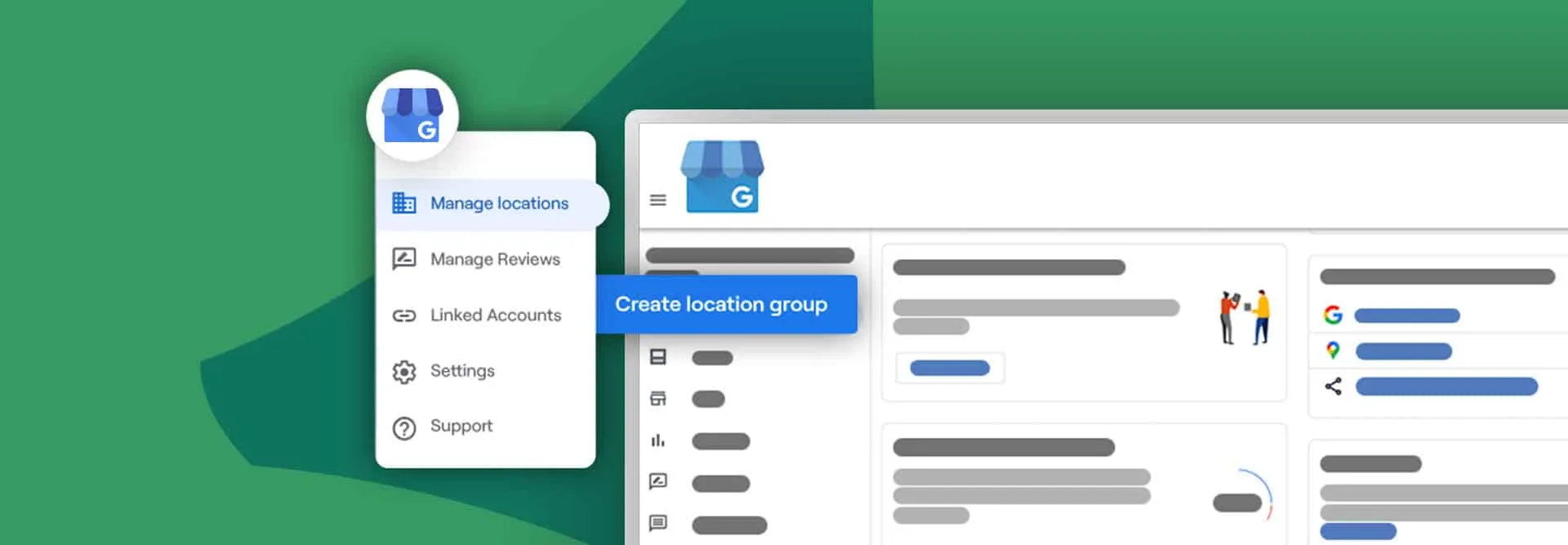
Key Insights:
- Location groups and business groups are essential tools for managing multiple Google Business Profiles efficiently, allowing for bulk tasks and categorization.
- Business groups facilitate shared management of locations with multiple users, acting like shared folders.
- Owners, managers, and primary owners have different access levels within business groups.
- Assigning the right level of access based on responsibilities helps maintain security and control.
In the realm of multi-location small businesses, managing Google Business Profiles (formerly known as Google My Business) can be a daunting task, riddled with challenges ranging from inconsistent information updates to fragmented review management. Ensuring Google gets the right information for local listings is necessary to support your local SEO efforts. That’s why organizing your client’s multiple Google Business Profiles within location groups is crucial to managing them. Add in the additional organization from using business groups, and you’ll become a powerhouse at managing GBP.
This comprehensive guide dives into the dynamic duo of solutions that Google offers: Location Groups and Business Groups. Join us on this exploration of how these tools can revolutionize the management of multi-location business profiles, so you can offer Google Business Profile management to your clients as effectively as possible.
Maximize visibility and enhance findability for local businesses
What are GBP location groups?
Location groups in Google Business Profiles are used to manage a group of individual locations collectively. They allow you to perform bulk tasks to multiple locations and categorize locations by chain, region, or category. You can add personal accounts and user groups to a location group, and they inherit the location group’s permissions. Locations can be in multiple location groups at once.
While you can (and should) use location groups to streamline your workflow, make sure each location is optimized by adding keywords to your GBP.
Step-by-step guides for GBP location groups
How to create a location group for GBP locations
Here are the steps to create a new location group in Google Business Profile:
- Sign in to your Google Business Profile.
- If you have more than one location, click on “Manage locations” from the menu.
- Click on “Create location group” on the top right-hand corner of the screen.
- Enter a location group name and select the locations you want to include in the group.
- Add a manager to the location group.
- Click “Create” to save the location group.
Alternatively, you can create a location group by accessing the “Businesses” tab in the Business Profile Manager and clicking on “Create group”. Once you’ve created the group, you can select which locations you want to include in the group and add a manager.
There is no limit to the number of location groups you can create, but it’s recommended to organize them in a way that makes sense for your clients to avoid confusion or mismanagement. If during that organization, you realize your client has duplicate listings, follow this guide on merging Google Business Profile listings or this how-to on deleting Google Business Profiles.
How to add a new location to an existing location group
To add a new location to an existing location group in Google Business Profile, you can follow these steps:
- Sign in to your Google Business Profile.
- If you have more than one location, click on “Manage locations” from the menu.
- Select the location group to which you want to add the new location.
- Click on the option to add a new location to the group. The specific wording or location of this option may vary depending on the interface or version you are using.
- Provide the necessary information for the new location, such as the business name, address, and contact details.
- Save the changes, and the new location will be added to the existing location group.
It’s important to note that the exact steps may vary slightly depending on the version of Google Business Profile you are using. However, the general process should be similar across different interfaces.
By adding the new location to an existing location group, you can manage multiple locations collectively and perform bulk tasks more efficiently. This can be particularly useful for businesses with multiple branches or franchises.
How to assign users to location groups
To assign users to location groups on Google Business Profile, you can follow these steps:
- Sign in to your Google Business Profile.
- If you have more than one location, click on “Manage locations” from the menu.
- Select the location group to which you want to add users.
- Click on the option to add users to the location group. The specific wording or location of this option may vary depending on the interface or version you are using.
- Enter the email addresses of the users you want to add to the location group.
- Assign specific roles and permissions to each user as needed.
- Save the changes, and the users will be added to the location group.
What are GBP business groups?
Business groups are similar to location groups, but they are used to share management of your locations with multiple users. Business groups provide a safe way to share access to a set of locations with co-workers and are like a shared folder for your locations.
Business groups act as shared folders for your locations, providing a safer way to work together compared to sharing account usernames and passwords. Each business group has its own managers and owners, and you can still add owners and managers to single locations manually within a business group. If you currently share your account username and password with other users, you should transition to using a business group as a safer way to work together.
What’s the difference between a location group and a business group?
Location groups and business groups are both features of Google Business Profile that allow you to manage multiple locations collectively. However, there are some key differences between the two:
Location Groups:
- Used to manage a group of individual locations collectively.
- Allow you to perform bulk tasks to multiple locations and categorize locations by chain, region, or category.
- You can add personal accounts and user groups to a location group, and they inherit the location group’s permissions.
- Locations can be in multiple location groups at once.
- Used for managing multiple locations within a single business account.
Business Groups:
- Used to share management of your locations with multiple users.
- Provide a safe way to share access to a set of locations with co-workers and are like a shared folder for your locations.
- Each business group has its own managers and owners, and you can still add owners and managers to single locations manually within a business group.
- Used for sharing management of multiple location groups with multiple users.
In summary, location groups are used for managing multiple locations within a single business account, while business groups are used for sharing management of multiple location groups with multiple users. Both location groups and business groups allow you to perform bulk tasks to multiple locations and categorize locations for easier management.
A step-by-step guide to creating business groups for Google Business Profile
If you’re starting from scratch, you’ll want to verify your client’s Google Business Profile first. No postcard? No problem, we’ve got a guide to GBP verification without a postcard — since it can be one of the slower methods.
You can create a business group to manage multiple location groups collectively and share management with multiple users. To create a business group, you can access the Business Profile Manager and click on the “Businesses” tab, then click “Create group”. Once you’ve created the group, you can add locations and users to it as needed.
To create a business group to manage multiple location groups on Google Business Profile, you can follow these steps:
- Sign in to Business Profile Manager.
- Click on the “Businesses” tab.
- If you’re part of multiple organizations, make sure to choose the right organization first.
- Click “Create group”.
- Enter the name of your group and click “Create”.
- Start adding locations to the group.
- Add managers to the group as needed.
Once you’ve created the business group, you can add locations to it and assign managers to manage the locations collectively. Business groups provide a safe way to share management of your locations with multiple users and are like a shared folder for your locations. By using business groups, you can effectively manage multiple location groups and share access to a set of locations with co-workers.
It’s important to note that it’s a good idea to limit the number of business groups to one account per business or brand. Additionally, it’s not possible to import a single spreadsheet across multiple business groups or download location information from across business groups together into one spreadsheet.
GBP Location Groups and Business Groups FAQs
1. What are Google Business Profile location groups?
Location groups let you manage multiple business locations under one dashboard. They allow bulk edits, updates, and permissions for all locations—ideal for franchises or multi-location businesses that need consistent, accurate data across Google.
2. How are business groups different from location groups?
Location groups organize locations within a single account, while business groups let multiple users manage shared locations collectively. Think of location groups as folders for locations, and business groups as shared folders accessible to multiple users or teams.
3. How do I create a location group in Google Business Profile?
Sign in to your Business Profile Manager, click “Manage locations,” then “Create location group.” Enter a group name, select the locations you want to include, and add managers. Save your changes to start managing your grouped profiles efficiently.
4. Can I assign different users to manage different location groups?
Yes. You can assign unique users or teams to different location groups and customize their access levels. This setup is especially useful for agencies managing multiple clients or brands with separate store locations.
5. How many location groups can I create in Google Business Profile?
There’s no official limit. You can create as many location groups as needed. The key is to stay organized—use logical naming (e.g., by region or brand) to simplify reporting, permissions, and performance tracking.
6. What are the access levels in GBP business groups?
There are three main access levels: Primary Owner, Owner, and Manager. The Primary Owner controls all settings, Owners can manage listings and users, and Managers can handle updates, posts, and review responses.
7. Why use business groups instead of sharing login details?
Business groups provide a secure way to collaborate without sharing account credentials. Each user has individual access, reducing the risk of data loss or accidental edits while maintaining control over permissions.
8. Can I perform bulk updates with location groups?
Yes. Location groups let you make bulk updates such as changing business hours, adding photos, or updating attributes for multiple locations simultaneously—saving time and ensuring accuracy across all listings.
9. How can I manage multiple GBP accounts efficiently?
Use tools like Vendasta’s white-label listing management and local SEO solutions to automate updates, monitor reviews, and maintain accuracy across all locations. This helps ensure consistency while freeing up team resources.
10. Should I limit the number of business groups per account?
Yes. It’s best to maintain one business group per brand or client to prevent confusion and data overlap. Keeping a clear group structure helps simplify access control, performance monitoring, and scalability.
