About Us
 Careers
 Leadership
 Board
Board Newsroom
A working Google review link comes from your Business Profile: search your business name on Google while signed in, open Read Reviews, click Get more reviews, and select Copy. The same panel holds a QR code you can save and print. That is the whole job for most owners, and it takes under a minute once you know where the button sits.
The link matters because reviews are one of the few levers a local business controls when it wants to get more customers from local search. A customer who has to hunt for your listing, find the reviews tab, and work out where to click usually gives up. A direct link removes those steps, so the people who are happy to help can do it in a few taps from a text, an email, or a printed card.
This guide covers how to create Google review link URLs and QR codes on desktop and in the Google Maps app, including a Place ID fallback for when the dashboard is out of reach. It also covers how to test the link, when and where to send it, and how to ask for reviews without breaking Google’s review policy or federal rules on incentives.
Grow reviews, boost visibility, and uncover insights with AI
TL;DR
- The review link sits under Get more reviews: Open your Business Profile in Google Search, choose Read Reviews, then Get more reviews, then Copy. Right-click the QR code in the same panel to save it.
- Test fallback links and ask everyone: Drop your Place ID into search.google.com/local/writereview?placeid= and test the result, since Google does not document that URL. Ask every customer without paying for reviews: Google’s policy bans incentives and selective solicitation, and the Federal Trade Commission (FTC) Consumer Review Rule carries penalties for rewards tied to a particular sentiment.
What You Need Before You Create a Google Review Link
Four things stand between you and a working link, and most owners already have three of them.
- An owner or manager role on the profile: The Get more reviews panel is part of profile management, so sign in with an account that owns or manages the Business Profile.
- Access to the managing Google account: Open Google Search or the Google Maps app with the account that owns or manages the profile, not a personal account that happens to be logged in.
- The business name and address as Google lists them: You need these only for the Place ID fallback, which works without dashboard access.
- A computer browser for the QR code: Google’s help page says “reviews QR codes can only be generated on a computer browser, not on mobile devices.”
Why Google Reviews Matter for Local Search and Trust
Google says local results are mainly based on relevance, distance, and popularity, and popularity draws partly on how many reviews you have. Its local ranking help page puts it plainly: “More reviews and positive ratings can help your business’s local ranking.” The page names review count, not recency, and gives no target number.
Practitioners add a timing angle. A Google Business Profile audit guide published by Search Engine Land argues that the number of reviews you get each month, and how recent your last one is, often outweigh total count for the top map pack positions.
Reviews are one signal among several in the Google 3-pack, and they are the one a steady request habit moves fastest.
Searchers also see the rating and review count in the local pack before they see your website, and the way Google reviews surface in search results makes them the first trust check a new customer runs.
Owners know it: Vendasta’s 2026 State of Reputation Management report found that 74.5% of small businesses say online reputation management is critically important to their business today.
Raising your Google ratings starts with volume, and volume starts with a link you can send.
How to Create Your Google Review Link Step by Step
Two paths produce the link: copy it from the profile’s Get more reviews panel, or build it by hand from your Place ID. The dashboard path is the one Google documents, and it is the one to use whenever you can sign in.
The Place ID path is for anyone locked out of the dashboard, such as a new manager waiting on access or an agency building links before a client grants permissions. It works, but Google does not document the URL, so treat it as a fallback and test it before it goes on anything printed.
The steps below start with the desktop dashboard, then cover the Google Maps app, then the manual build.
Step 1: Open Your Business Profile
Search your business name on Google while signed into the account that manages the profile, and the management panel appears above the results. Google’s Business Profile editing help page confirms you can edit the profile directly on Search or Maps, so older walkthroughs that send you to a separate Google My Business app are out of date.
Operators with 10 or more locations can still work on Search and Maps, but Google’s bulk management help page points them to Business Profile Manager for managing many profiles at once.
In the Google Maps app, the editing steps on Google’s help page start with the Business tab at the bottom right.
Step 2: Choose Read Reviews, Then Get More Reviews
Google’s help page on review links and QR codes gives the path Read Reviews, then Get more reviews, the second marked with a share icon.
Search Engine Land’s coverage of the QR code launch describes a second route on desktop: search for your business and click Ask for reviews, which leads to the same link-and-QR panel.
Labels drift between interface versions, so look for whichever of the two appears on your profile. If you see neither, confirm you are signed in as an owner or manager and that the profile is verified and not suspended or restricted.
Step 3: Copy the Review Link
Select Copy, and the link is on your clipboard. Google does not publish the URL format, so copy the link from the panel rather than typing one from memory; the testing section below shows how to confirm it opens the review form.
Paste the link into a note or your customer relationship management (CRM) system so you can reuse it. You will want it for texts and your email signature before the week is out. Put it on invoices too.
Get the Link in the Google Maps App
Google documents the Business tab as the owner’s entry point in the Maps app but not a review-request path, so the taps below come from a third-party walkthrough by Wiremo. The same steps apply on iPhone and Android.
- Open the Google Maps app with the account that manages the profile, tap your profile picture, and open your Business Profile.
- Tap Get more reviews (or Ask for reviews), then copy or share the link.
Labels can move between app versions, so if the button is missing, use the desktop path. The app also cannot generate QR codes; Google produces those only in a computer browser.
Build the Link Manually With Your Place ID
The manual pattern is search.google.com/local/writereview?placeid=PLACE_ID, with your Place ID pasted in place of PLACE_ID. Google doesn’t officially document this URL, and behavior can vary by device and browser, so test it on more than one phone before you print it.
To find the Place ID without dashboard access:
- Open Google’s Place ID documentation and use the Place ID finder to search the business name and address.
- Copy the ID the finder returns, and confirm the name and address match the location you meant.
Developers can also request the place from the Places API (application programming interface). Its Place reference includes a googleMapsLinks object with a writeAReviewUri field, the write-review URL Google does document.
Google warns that “place IDs may change over time” and recommends refreshing any ID more than 12 months old. If the finder can’t locate a service-area business with a hidden address, copy the link from the dashboard instead.
Test Your Link Before You Send It
Open the link in an incognito window, signed out, and confirm the write-review dialog opens with your business name at the top. Signed out, you see what the customer sees up to the sign-in prompt, which is the experience that matters.
Run through this list before the link goes on anything printed:
- The name and address in the dialog match the location you meant: Multi-location owners must pick the intended location before copying, or the link points to the wrong branch.
- The link opens on an iPhone and an Android phone: Tap it from a text message on both, since that is how most customers will open it.
- The dialog, not a search results page, loads on desktop: A redirect to search results can mean a wrong or outdated Place ID; use the dashboard link if it happens.
- The link still works after profile edits: Place IDs can change over time, so retest after a listing merge or a major edit to the name, address, or category.
Turn the Link Into a QR Code
Google generates the QR code in the same Get more reviews panel: right-click the code and choose Save image as. It is desktop-only. Google gives no file type or size and no branding options, so expect a plain code tied to one profile.
Search Engine Land’s launch coverage confirms that scanning it takes customers directly to the add-review form for that business.
Print it on a counter card, a table tent, the bottom of receipts and invoices, a thank-you card in the job folder, and a truck decal large enough to scan at a stoplight.
- Generate a separate code from each location’s profile. If a listing merges or its Place ID changes, printed codes can stop working, so pull the current link from the dashboard before each print run.
- A third-party generator can add a logo or scan tracking around the copied link, but the code then depends on that generator staying live. Google’s old marketing kit of printable “Review us on Google” stickers is gone, so the native code and your own printer are the free route.
When to Ask for a Review
Ask in person when the job ends and hand over the QR card or say a text is coming. Follow up with the link by text once the customer has had time with the result. A GatherUp study of 23,000 locations, covered by Search Engine Journal, found businesses that ask averaged 122 reviews per location against 53 for those that did not.
Use an in-person ask followed by a text:
- Right after the job or at checkout: The HVAC technician or cleaning crew lead who did the work asks before leaving, while the result is in front of the customer; a front-desk team at a dental or accounting office can do the same. At checkout, mention the review while settling the invoice and point to the counter card. Google’s policy says merchants should not require or pressure customers to review while on the premises, so make the ask and let them do it from the parking lot.
- In the follow-up text: Send the link once the customer has the result in hand. A Journal of Marketing study based on two randomized field experiments found reminders sent immediately after a purchase reduced the chance of a review, while delayed reminders increased it, which argues for a short gap between the in-person ask and the text.
Whatever schedule you choose must reach every eligible customer. Set the trigger in your field software or CRM; then nobody decides case by case who gets the text, so every request stays inside Google’s rule against selective solicitation.
Where to Put Your Review Link
Put the link everywhere a customer already looks after paying you. Google’s help page lists receipts, thank-you emails, the end of a chat, and in-store QR codes, and it allows review requests by email, WhatsApp message, or Facebook post.
- Text message: Send it from the number the customer already has for you.
- Email signature: One line under your name, so estimates and invoices carry the link without extra effort. Your replies will carry it too.
- Invoice or receipt: Add the link or QR code to the footer of your invoice template in Jobber or QuickBooks Online. Use the same placement in whatever else prints your receipts.
- Counter or table QR card: A small stand next to the card reader catches the customer at checkout.
- Truck decal: A QR code on the rear door turns a parked truck into a review request for the neighbor who watched the job.
- Thank-you card: Tuck a printed card into the job folder or mail it with the final invoice.
For more ways to grow review volume, see this guide on how to get more Google and Facebook reviews.
When the reviews land, reply to the positive reviews as well as the complaints; Google’s tips for getting reviews say replying shows customers that their feedback matters.
Copy-Ready Review Request Templates for Text and Email
A good request is short, names the business, and gets the customer to the form in one tap. Both templates below go to every customer and carry no incentive, so they stay inside Google’s policy and the FTC rule covered later in this guide.
They also avoid the phrase “if you were happy,” which reads as a filter and nudges the review toward a rating. Each one tells the customer up front that they will need a Google account, which heads off the most common reason people abandon the form.
Swap in your details where the brackets appear, and paste your review link where [LINK] sits.
Text Message Template
Hi [First name], thanks for choosing [Business] today. If you have a minute, a Google review helps neighbors find us: [LINK]. You’ll need to be signed into a Google account. Thanks again, [Your name]
Email Template
Subject: Thanks from [Business]
Hi [First name],
Thanks for having us out on [date]. If you’re willing, we’d appreciate a short Google review about your experience: [LINK]
The link opens the review form directly; you’ll need to be signed into a Google account. Reply to this email if anything about the job needs a second look.
[Your name], [Business]
A longer review request walkthrough covers more ways to word the ask.
What Google Allows: Policy on Gating and Incentives
Google’s Maps user-contributed content policy sets limits on review campaigns:
- No incentives or selective solicitation: Merchants may not offer incentives such as payment, discounts, or free goods and services in exchange for posting a review. The ban also covers incentives for revising or removing a negative review. Merchants may not “Discourage or prohibit negative reviews, or selectively solicit positive reviews from customers.”
- No pressure or quotas: Merchants should not pressure customers to review while on the premises or request specific content. They also should not ask staff to solicit a set number of reviews, or reviews that identify a staff member.
Asking only the customers you think are happy is selective solicitation, so a “rate us first, then we’ll show you the Google link” screen is out. Google permits asking every customer for a genuine review by link or QR code, without touching the rating or the wording.
Enforcement lands on the profile. Google’s restrictions help page lists blocking new reviews or unpublishing existing ones for a set period, and a public warning that fake reviews were removed. Google notifies the owner by email before it applies a restriction, and businesses can appeal.
Search Engine Roundtable reported a case where a repeat violation doubled the restriction, so a 30-day block can become two months.
The scale is large: Google’s latest Maps protection update says it blocked or removed over 292 million policy-violating reviews in 2025.
If your profile is the target of fake Google reviews, the same policy gives you grounds to report them.
The FTC Consumer Review Rule adds federal exposure. The rule allows incentives only when there is no express or implied requirement that the review express a particular sentiment. The FTC’s rule Q&A also says that asking only satisfied customers has no specific prohibition in the rule, “But this practice could violate the FTC Act.”
Courts can impose civil penalties for knowing violations, and the FTC’s current civil penalty schedule sets the maximum at $53,088 per violation, a figure the FTC kept unchanged for 2026.
If an agency sends requests on a client’s behalf, the client’s profile carries the restriction, so write the rules into the engagement: ask every customer without a filter, and offer no gift card. Google’s policy bans incentives outright while the FTC rule targets sentiment-based ones, so a practice can pass the FTC test and still breach Google’s policy; check both.
Do Customers Need a Google Account to Leave a Review
Yes. Google’s tips for getting reviews state that “Customers must be signed into a Google Account to leave a review,” and the account does not need a Gmail address; customers can set one up with an existing non-Gmail email. A customer who clicks your link while signed out sees a sign-in prompt before the review form.
There is no anonymous option. Google’s Maps reviews help page says, “All reviews are public and anyone can find what you add. You’re unable to add an anonymous review.”
Google’s November 2025 Maps announcement added a middle ground: reviewers can choose a nickname and profile picture instead of their real name, but the review stays associated with their Google account behind the scenes.
Tell customers up front that they will need to sign in, as the templates above do. A throwaway account created for the review is the wrong fix, because Google’s spam systems look for suspicious accounts and the review can be removed.
Troubleshooting Review Links That Open the Wrong Place or Fail
Most broken review links trace to the wrong location, a changed Place ID, or a profile status problem. Match your symptom to the cause below:
| Symptom | Likely cause | What to do |
|---|---|---|
| Link opens a different location | Wrong location selected before copying, or a Place ID that belongs to another listing | Reselect the location in the dashboard and copy a fresh link |
| Link opens a duplicate or dead listing | A merge or profile change left the link pointing at an old Place ID | Open the live profile and generate the link there |
| Manual link fails or errors on one device | The writereview URL is undocumented and behaves inconsistently | Use the dashboard link instead |
| Customer lands on a sign-in page | Customer is not signed into a Google account | Expected behavior; say so in the request |
| No Get more reviews button | Signed into a non-owner account, profile unverified, suspended, or restricted | Sign in as owner or manager; complete verification; check email for a restriction notice and appeal |
| Place ID finder can’t find a service-area business | Hidden address | Copy the link from the dashboard |
| Button missing in the Maps app | App labels vary between versions | Use the desktop path in a computer browser |
Automate Review Requests With Vendasta
Vendasta, an AI customer acquisition and engagement platform, handles the review request so nobody has to remember to send it. Vendasta Reputation AI sends review requests by email and SMS and connects with QuickBooks Online, Jobber, and PetExec, so requests go out from real transactions to every customer.
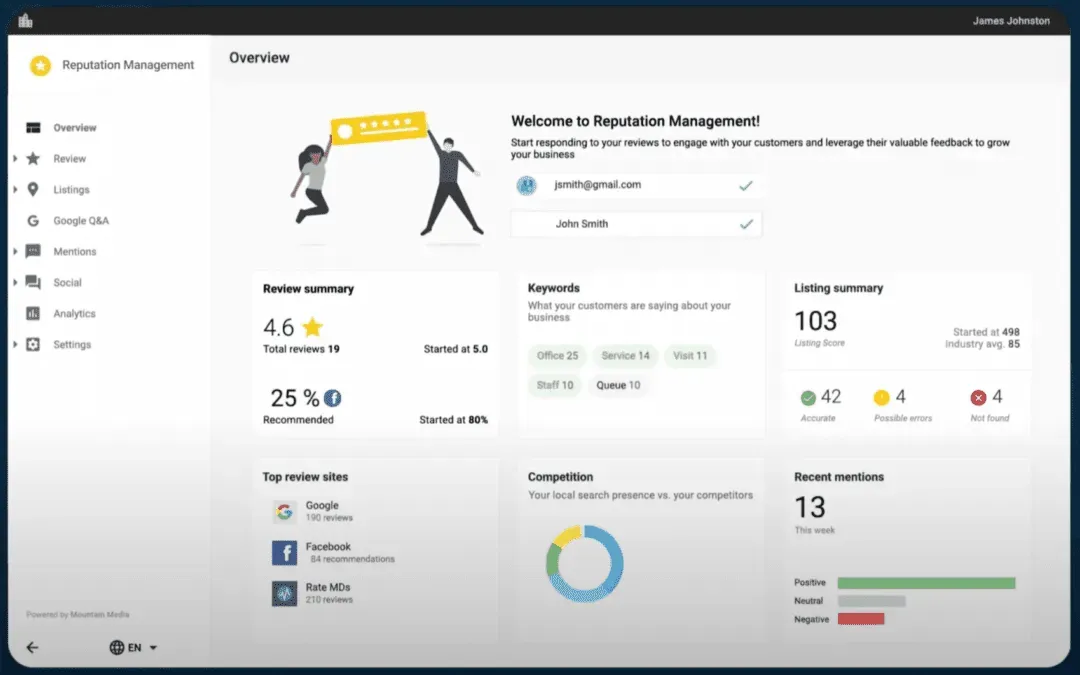
Reputation AI also monitors reviews across 100+ sources. The AI Reputation Specialist, the AI Employee it unlocks, responds automatically to Google and Facebook reviews in the reviewer’s language under rules you set, such as rating thresholds, delays, and approval steps, and suggests responses for other review sites.
In one case, Blue River Digital used the AI Reputation Specialist to help an auction house generate 21 five-star reviews in 30 days.
Agencies can use Partner Center to deploy Reputation AI and the AI Reputation Specialist across every local business client under their own brand, with billing and reporting in one place. That turns reputation and review software into the fulfillment layer behind the service you sell, so you grow recurring revenue without adding headcount.
Local businesses can start with a 14-day free trial, no credit card required. Review requests are one part of an AI Workforce that also answers calls, follows up with leads, and keeps your listings current.
To see how Vendasta Reputation AI can handle this workflow in your business, book a Vendasta demo.
Create Google Review Link FAQs
These answers cover link setup and troubleshooting, plus the account requirements and review policies that apply to customers.
They are written for owners and managers who need a quick answer before sending the next request, and for agencies setting up review links across client profiles.
1. How do I create a Google review link on my phone?
Open the Google Maps app, tap your profile picture, open your Business Profile, then tap Get more reviews and copy the link; third-party walkthroughs give this path. Google documents the Business tab but not the request link in the app, so labels can move between versions. QR codes only generate in a computer browser.
2. What does a Google review link look like?
Google does not publish the format of the dashboard link, so copy it from the Get more reviews panel rather than typing it. The manual version is search.google.com/local/writereview?placeid= followed by your Place ID. Google doesn’t document the manual version, so test it first.
3. Can I make a Google review link without access to the dashboard?
Yes. Find the Place ID with Google’s Place ID finder, then paste it into the writereview URL. Google does not document that URL and behavior varies by device, so test it signed out before printing it.
4. Do customers need a Google account to leave a review?
Yes. Google states customers must be signed into a Google Account to post a review, though the account can use any email address, not only Gmail. A signed-out customer who opens your link sees a sign-in prompt first. Say so in your text or email to prevent drop-off.
5. Can customers leave an anonymous Google review?
No. Google Maps help states that you’re unable to add an anonymous review, and every review is public. Since November 2025, reviewers can show a nickname and picture instead of their real name, but the review stays associated with their Google account behind the scenes.
6. Why does my Google review link open the wrong business?
Multi-location owners often copy the link while the wrong location is selected in the dashboard. Links built from a Place ID can also break if the ID changes, which can happen after a listing merge or major profile edits.
Reselect the correct location and copy a fresh link from the dashboard. Retest it signed out in an incognito window.
7. Can I offer a discount for a Google review?
No. Google’s policy bans incentives such as payment, discounts, or free goods and services for posting a review or for revising or removing a negative one. The FTC Consumer Review Rule prohibits incentives conditioned on a particular sentiment, and civil penalties can reach $53,088 per violation. Google can also block new reviews on your profile for a set period.
8. Is it against Google policy to ask only happy customers for reviews?
Yes. Google’s policy prohibits selectively soliciting positive reviews or discouraging negative ones, and a screen that filters customers by rating before showing the Google link counts as gating. The FTC says the practice has no specific prohibition in its rule but could still violate the FTC Act.
9. How do I get a QR code for Google reviews?
Open your Business Profile in a computer browser, choose Read Reviews, then Get more reviews, right-click the QR code, and select Save image as. Google generates the code only on desktop, with no file type or branding options. Scanning it opens the add-review form for that one profile.
10. Do Google review links expire?
Google has not announced an expiry for dashboard review links. Links built from a Place ID can break when the ID changes, and Google recommends refreshing Place IDs more than 12 months old. Retest your link after merges or major edits, and recopy from the dashboard if it fails.