About Us
 Careers
 Leadership
 Board
Board Newsroom
Most customers check reviews before they pick a local business. BrightLocal’s 2026 Local Consumer Review Survey found 97% of consumers read online reviews, and 41% “always” read them when browsing for businesses. The fastest way to add to that pile is to ask the customer who just paid you, while the job is still fresh.
A Google review QR code turns that ask into one scan. It opens the review form on the customer’s phone, so they don’t have to search for your listing, scroll past competitors, or remember to do it later. Every new review adds to the proof that helps you win more local customers from search and Maps.
The code itself is free, but a few things can go wrong after it leaves your desk. The scan can land customers on a Google sign-in screen, the code can blur on thermal receipt paper, and a printed link can’t be changed once the invoice pads are in the trucks. This guide covers getting the link, generating and sizing the code, testing it, choosing static or dynamic, placing it, staying inside Google’s review policy, and automating the ask once the code is working.
You make one in four steps:
- Copy the direct review link from your Google Business Profile on a computer browser.
- Paste it into a free generator such as QR Code Monkey.
- Download the image as a PNG or SVG.
- Scan the printout on an iPhone and an Android phone to confirm it opens the review form.
Google generates a basic QR code for you on the same screen, so the generator step only matters if you want a logo, a specific size, or a vector file for the print shop.
Automate the entire customer journey from first touch to repeat business
TL;DR
- Google builds the review QR code for you: Copy the link or save the code from the Get more reviews screen in your Business Profile. It only works in a computer browser, not on mobile.
- Nearly every customer reads online reviews: BrightLocal’s 2026 survey found 97% of consumers read online reviews, and 41% always read them when browsing for businesses.
- Static codes never expire, dynamic codes can: A static code stores the link in the pattern itself. A dynamic code stops redirecting when its subscription ends.
- Google bans review incentives and gating: Discounts for reviews, filtering who gets asked, and staff review quotas all break Google’s policy and can restrict your profile.
- Vendasta Reputation AI handles requests and replies: Reputation AI Premium sends review requests by email and SMS. The AI Reputation Specialist responds to Google and Facebook reviews under rules you set.
How to Create a Google Review QR Code in Four Steps
Get the direct review link, paste it into a generator, download the file, and test the print before it leaves the shop. Each step has one common way to go wrong, and the fixes below come from Google’s own documentation and from the QR code standards bodies where those exist.
The order matters. A code is only as good as the link inside it, so a wrong link in step one means every print run after it sends customers to the wrong place. Likewise, a code that looks fine on screen can fail on paper, which is why testing comes last and uses the real printout.
Budget about 15 minutes for the first code. After that, the same file works for receipts, invoices, signs, and email signatures, so you only repeat the sizing and testing for each new placement.
Step 1: Get Your Direct Google Review Link
The direct link is the one Google generates inside your Business Profile, and it is the only route Google documents. Google’s help page says to select Read Reviews, then Get more reviews, and select Copy for the link, or right-click the QR code and choose Save image as. The same page states that review QR codes can only be generated on a computer browser, not on mobile devices, so do this step at a desk.
Search Engine Land’s report describes a shortcut: search your business name on Google from a desktop, click Ask for reviews, and the review link sits above the QR code. Google doesn’t publish the link’s format, so copy it rather than typing it.
For more ways to use the same link in emails, texts, and on your website, see this guide to sharing your Google review link. Two other paths exist, and both come with a catch:
- Google Maps share: On iPhone or Android, open Google Maps, search for your business, tap the name, then tap Share. On desktop, click Send a link, then Copy link. Google’s documentation treats the place link and the review link separately, so expect this link to open your listing rather than the review form. Use it only when the Business Profile option is missing from your account.
- Place ID fallback: Search your address in Google’s Place ID Finder, copy the ID from the marker’s info window, and build the URL https://search.google.com/local/writereview?placeid=YOUR_PLACE_ID. Google doesn’t document this format for business owners, and it recommends refreshing place IDs that are more than 12 months old, so test the URL on a phone before anything gets printed.
Step 2: Turn the Link Into a QR Code With a Free Generator
Paste the copied link into a static QR generator and download the highest-resolution file it offers. Compare these free options for print jobs:
| Generator | Free use and limits | Downloads and customization |
|---|---|---|
| QR Code Monkey | Codes are free for any use, including commercial. They never expire and have no scan limits. | Downloads come as PNG, SVG, PDF, or EPS. Logo and design settings apply only to PNG and SVG, and the site recommends a high-resolution setting for print. |
| goQR.me | Commercial and print use is allowed, including advertising. The data is stored in the code image itself, and goQR.me doesn’t track scans. | EPS and SVG vector files download free without registration. PNG, JPG, GIF, and PDF are also available. |
| Canva | The generator is free, but codes made on Free, Pro, or Education plans carry a Canva logo by default. Replacing it with your own logo requires Canva Business, Enterprise, or Nonprofits. | Canva lists PNG, JPG, SVG, and PDF downloads. |
Pick SVG or EPS for anything a print shop produces and PNG for a receipt printer or email signature. A vector file scales to any size without the soft edges that make a code fail.
Step 3: Customize and Size the Code for Print
Print dark modules on a light background, leave a clear margin, and size the code for the customer’s scan distance.
- Margin: Denso Wave, the company that invented the QR code, specifies a margin four modules wide on all sides. It also warns that letters or pictures placed around a code can make it difficult or impossible to read.
- Contrast: The GS1 2D barcode colour guide sets a floor of 30% symbol contrast and recommends around 50% for greater reliability. It also says colour gradients should be avoided because they offer poor contrast.
- Error correction: Denso Wave’s error correction guide says level M (15%) is the most frequently selected. If you add a logo, set level H (30%) and keep the logo small, since GS1 notes that logos sit on top of the data and block encoded information.
- Logo test results: GS1 recommends avoiding logos on point-of-sale codes. In its own test with a 16 mm logo, levels L and M failed and level Q marginally failed at roughly 26–33 mm, while level H passed at about 37 mm.
Print sizes depend on placement. Treat these as floors rather than targets:
| Placement | Sizing guidance |
|---|---|
| Receipts and invoices | Uniqode’s receipt guide sets a 1 cm (10 mm) minimum and recommends at least 15 mm for a 15 cm scan distance. |
| Table tents and service menus | Uniqode’s distance rule puts a code read from 30–50 cm at 30–50 mm, plus 20–30% in dim light. |
| Counter signs | Uniqode’s sizing guide sets code size at scanning distance divided by 10, plus 20–30% for poor lighting, so a sign read from 50 cm needs at least a 50 mm code. |
For thermal receipt printers, Denso Wave recommends that each module be made up of four or more printer dots. On a 203 dpi receipt printer, that works out to about 0.5 mm per module, so a 25-module code lands at 12.5 mm before its margin.
Use the printer’s native QR command or a plain two-tone image rather than a shaded graphic. Raise the darkness setting if the print looks grey, and rescan a receipt that has been sitting in a drawer for a few days to make sure it still reads.
Step 4: Test the Scan on iPhone and Android Before You Print
Scan the actual printout, not the screen, on one iPhone and one Android phone before you order a run. On iPhone, open the Camera app and tap the link that appears. On Android, use the camera or Google Lens. The link should open the review form with empty stars, not your Maps listing and not a search results page.
Test at the distance the code will live: arm’s length for a counter sign, hand-held for an invoice. Then repeat on a receipt from your own printer, because a code that scans from a laser proof can fail on thermal paper at a lower darkness setting.
The step people skip is scanning while signed out of Google. Sign out in the phone’s browser, scan again, and watch what the customer sees. If it’s a sign-in screen, the wording on your card should tell customers what to expect.
Static or Dynamic: Which QR Code Should You Print?
Print a static code on anything you can reprint cheaply, and pay for a dynamic code only on signage you can’t.
- Static: A static code stores the URL in the pattern itself, so it never expires and never depends on a vendor.
- Dynamic: A dynamic code stores a short link that redirects through the provider’s server, which lets you change the destination after printing and records each scan.
Paid plans with dynamic codes start around $7–$10 per month, usually with annual billing. Uniqode’s pricing page, for example, lists premium features from $9 a month and offers annual plans only.
QR Code Generator PRO, now sold as QRCG by Bitly, includes two dynamic codes and up to 10,000 scans on its Starter plan. The catch is what happens when the subscription ends.
According to QRCG’s cancellation help article, dynamic codes keep redirecting for 30 days from the last day of the contract. After that, they redirect to a service page instead of their original destination, which means a customer scanning your counter stand lands on the vendor’s page instead of your review form.
Uniqode’s documentation is stricter: after you cancel, its dynamic codes stop working on your renewal date, while static codes you’ve already created keep working.
The case for dynamic is that Google has changed review links before. Search Engine Roundtable’s report on a Local Services Ads change quoted Google’s email to advertisers: “Your old link for collecting reviews won’t work anymore.”
Google has also retired Business Profile short names. Businesses can no longer create or edit them, and existing short names still work but are no longer shown on profiles. Nothing in Google’s current documentation says the Business Profile review link is moving, but a code etched into an acrylic stand or printed on a truck has no undo.
A middle path costs nothing: point the code at a short URL on your own domain, such as yourcompany.com/review, that redirects to Google. You can change the redirect any time, and the code only stops working if your website does.
What the Customer Sees After Scanning
The customer scans with the camera, taps the link, and lands on the review form in the phone’s browser or Maps app. Google’s review tips page states that customers must be signed into a Google Account to leave a review, and that they can set one up with a non-Gmail email address.
Once signed in, the customer picks a star rating and can add a written review and photos before posting. Search Engine Land’s report confirmed that the Business Profile QR code “jumps the user directly to the add review form,” which is what makes it better than a link to your listing.
Anonymous reviews aren’t an option. Google Maps help states that “All reviews are public and anyone can find what you add.”
If the link opens in a browser where the customer isn’t signed in, Google asks them to sign in first. Add one line to the card so customers know before they scan: any Google Account works, and no Gmail address is needed.
Where to Put the QR Code So People Actually Scan It
Put the code where the customer is holding a phone and has just decided you did a good job: on the invoice or receipt, or at the spot where they pay. Google’s help page suggests including the link on receipts and in thank-you emails, adding it at the end of a chat, and displaying the QR code in your store. The spots that work for a local service business:
- Invoices and receipts: The customer is holding the paper while the job is fresh. Print the code at 15 mm or more on a receipt printer, or add the saved PNG to your invoice template.
- Front desk or billing counter: A countertop card or sign sits at roughly arm’s length, so size it at 50 mm or larger and keep the margin clear of logos and text.
- Table tents and service menus: For a waiting room or a seated consultation, 30–50 mm covers a phone held 30–50 cm away.
- Packaging and leave-behinds: A sticker on a filter box, a fridge magnet, or a review us on Google sticker reaches the customer after you’ve left. Keep the code dark on light.
- Email signature: Paste the PNG below your name so every estimate and invoice email carries the ask. In text messages, send the link itself.
Hand the card over after payment and let the customer scan at home. Google’s policy says businesses shouldn’t require or pressure customers to leave reviews while on the premises, so the technician’s job ends at handing over the card.
Google’s Rules: No Gating, No Incentives
Asking for reviews is allowed. Paying for them or filtering who gets asked is not. Google’s prohibited and restricted content policy bars reviews that have been paid for, directly or in kind, and content posted because of an incentive such as payment, discounts, or free goods or services. That includes offers made in exchange for revising or removing a negative review.
Google’s QR help page goes further and calls a discount for a review “fake engagement,” which it says is strictly prohibited. For a closer look at the risks, see why you shouldn’t buy Google reviews.
Review gating is the quieter violation. The policy tells merchants not to “Discourage or prohibit negative reviews, or selectively solicit positive reviews from customers,” and not to pressure people to review on the premises or set review quotas for staff. It also bars asking staff to solicit reviews that include specific content, such as a staff member’s name. Sending the QR code only to customers who scored you a 10 on a text survey is selective solicitation.
Consequences hit the whole profile. Google’s restrictions page lists blocking new reviews and unpublishing existing reviews, each for a set period, plus a warning that tells customers fake reviews were removed. Google notifies business owners by email before applying a restriction.
Enforcement is routine. Google’s Maps blog says it placed posting restrictions on more than 782,000 policy-violating accounts in 2025.
A compliant ask has no conditions attached. Something like this works on a card or out loud:
“Thanks for having us out. If you have a minute, we’d appreciate an honest review on Google. Scan this code and the form opens.”
Leave out any happiness check or staff member’s name, and don’t offer a discount. The same rules apply to the text and email requests you send after the job, and this guide on how to ask for a review covers compliant wording for each channel.
DIY Code vs Paid Dynamic Platform vs Acrylic Stand or NFC Card
Compare three ways to put the same review link in front of a customer by cost, whether you can change the link later, and whether you can see how many people scanned:
| Option | Cost | Editable after printing | Scan analytics |
|---|---|---|---|
| DIY static code (QR Code Monkey, goQR.me) | $0 | No; reprint to change the link | None; the link is stored in the code itself |
| Paid dynamic platform (Uniqode, QRCG by Bitly) | Around $7–$10 per month, usually billed annually | Yes while subscribed; codes stop redirecting after the subscription ends | Included; QRCG’s Starter plan covers up to 10,000 scans |
| Acrylic stand or NFC card | About $15–$30 per review card and $25–$45 per countertop stand at sellers such as TapTag | Varies by seller; confirm before you buy | Many sellers include a free tap dashboard with no monthly fee |
Choose the static code for anything you reprint every few months, including invoices and receipts. The dynamic platform earns its fee on a single permanent sign where a dead link would mean a new order.
Stands and NFC cards add a tap option for customers who won’t open the camera. Since the card carries the same review link, plan for the same Google sign-in step. Before buying one, confirm the listing says the link can be changed later. Without scan analytics, your measurement is the review count itself, which Reputation AI tracks across sources.
Automate Review Requests and Responses With AI
A printed code catches the customer standing in front of you. The request for everyone else has to go out by text or email after the job closes, and the replies have to go up when the reviews land. Neither happens from a ladder.
- Review requests: Reputation AI Premium sends review requests by email and SMS. It connects with QuickBooks Online, Jobber, and PetExec, so a paid invoice or a closed job can trigger the request automatically.
- Monitoring and responses: Reputation AI monitors reviews across 100+ sources and analyzes sentiment. Vendasta’s AI Reputation Specialist responds to Google and Facebook reviews in the reviewer’s language under configurable rules, such as rating thresholds, delays, and approval workflows, and suggests responses for other review sites.
- Proof of work: Every action is logged, so you can see which review got answered and when. Full review response automation requires Reputation AI Premium.
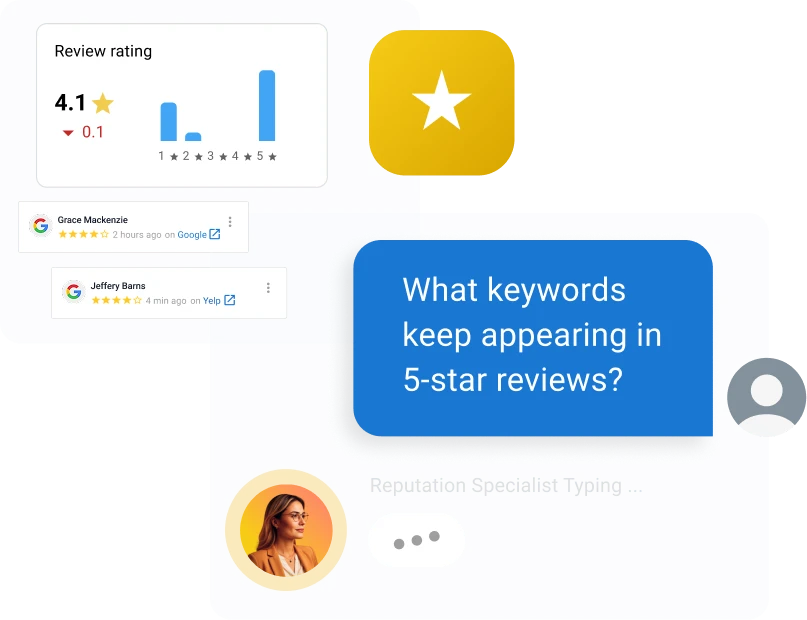
You don’t have to hand over the keys on day one. Start with approval workflows, so you see each draft before it posts, then let the AI Reputation Specialist reply on its own once you trust the results.
A response to a past customer keeps your name in front of someone who already paid once, and a public reply to a complaint shows the next prospect how you handle problems. Vendasta partner Blue River Digital helped an auction house earn 21 five-star reviews in 30 days after turning on the AI Reputation Specialist.
Most AI Employees deploy in under 30 minutes, and optional expert setup is available if you’d rather not configure the rules yourself.
The Bottom Line on Your Google Review QR Code
A Google review QR code is free, but it only pays off if the link keeps working and the ask follows Google’s policy. Copy the link from your Business Profile on a computer, generate the code with QR Code Monkey or goQR.me, and print it dark on light with a four-module margin. Size it for the scan distance, then test the printout on iPhone and Android while signed out.
Use a static code on invoices and receipts you can reprint, and a dynamic code or your own redirect on permanent signage. Never attach a discount or happiness filter to the ask.
The code covers the customer in front of you. For everyone who left before you asked, Vendasta Reputation AI Premium sends review requests by email and SMS, and the AI Reputation Specialist answers the reviews that come back under rules you set. To see how Vendasta can address this workflow in your business, book a Vendasta demo.
Google Review QR Code FAQs
1. How do I find my Google review link?
Open your Google Business Profile in a computer browser, select Read Reviews, then Get more reviews, and select Copy. Searching your business name on Google and clicking Ask for reviews reaches the same screen. Google only generates the review QR code on a computer, so the mobile app won’t show it.
2. How do I create a QR code for Google reviews?
Google builds one for you on the Get more reviews screen. Right-click it and save the image. For a logo, a specific print size, or a vector file, paste the copied link into QR Code Monkey or goQR.me. Download SVG or PNG, then test the printout on an iPhone and an Android phone.
3. Is a Google review QR code free?
Yes. Google’s own code costs nothing, and QR Code Monkey’s static codes are free for commercial use with no scan limits or expiry. Costs appear only if you want a dynamic code you can edit later or a physical stand or NFC card. Paid plans with dynamic codes start around $7–$10 per month, usually billed annually.
4. Does a Google review QR code expire?
A static code never expires, because the link is stored in the pattern itself. A dynamic code expires with the subscription behind it. QRCG by Bitly, for example, redirects cancelled codes to a service page after a 30-day grace period. The link can also stop working if Google changes it, so rescan printed codes now and then.
5. Can you change a QR code after printing?
Only if it’s dynamic. A static code encodes the URL permanently, so a new link means a new print run. A dynamic code points to a redirect you control in the provider’s dashboard, and a short URL on your own domain that forwards to Google works the same way without a subscription.
6. Can customers leave a Google review without a Google account?
No. Google requires the reviewer to be signed into a Google Account, and anonymous reviews aren’t possible. Customers without Gmail can set up a Google Account with any email address. Every review is public.
7. How does a customer leave a review after scanning the code?
The camera app shows a link, and tapping it opens the review form. After signing in, the customer picks a star rating, can add a written review and photos, and posts. The review then appears on your Business Profile in Google Search and Maps.
8. Why does my QR code open my Google listing instead of the review form?
Most likely, you made the code from a Maps share link, which points at your place page rather than the review form. Rebuild it from the Get more reviews link in your Business Profile. If you used a writereview?placeid= URL, note that Google doesn’t document that format for business owners, so switch to the Business Profile link.
9. Where should I put my Google review QR code?
Put it on the invoice or receipt the customer takes home, or at the counter where they pay. Your email signature is another spot. Google’s help page also suggests thank-you emails and the end of a chat. Size the code at roughly one tenth of the scan distance, with a clear margin.
10. Can I offer a discount for scanning my review QR code?
No. Google’s policy treats reviews posted in exchange for a discount, payment, or free service as a violation, and the consequences include blocking new reviews on your profile for a set period and a warning customers can see. Ask for an honest review with nothing attached, in person and in every text or email request.